


Pronto para transformar seu Site?
Agende uma ligação com um de nossos especialistas para saber mais.


Live shopping has always had one honest weakness. It converts, but only for the people who actually show up. Build a great show, brief a great host, line up the right products, and you are still capped by however many of your followers happened to see the notification.
That is now a solved problem. You can buy an audience for a live session. The only question left is where those people end up, and who owns them once the show is over.
A live video ad promotes a live broadcast to people beyond your existing followers.
According to Meta's own documentation, any advertiser with a Facebook Page can create a live video ad in Ads Manager to promote a Facebook Live to a wider audience, either while the broadcast is running or after it has ended. Two rules apply:
Access to certain advertising features is also granted based on account standing, which Meta surfaces in Business Support Home, so a brand new ad account may not see everything on day one.
Meta documents the flow for creating an ad during or after a broadcast. In short:
Two details matter more than they look. First, if you build the ad after the broadcast has ended, the ad text is pulled from what you entered in Live Producer when you started the video, and you cannot change it in Ads Manager. Write that description as ad copy, not as an afterthought. Second, approval takes roughly 30 minutes, which is a meaningful chunk of a 45-minute show.
This is the version most brands should be running, and Meta's guidance is specific.
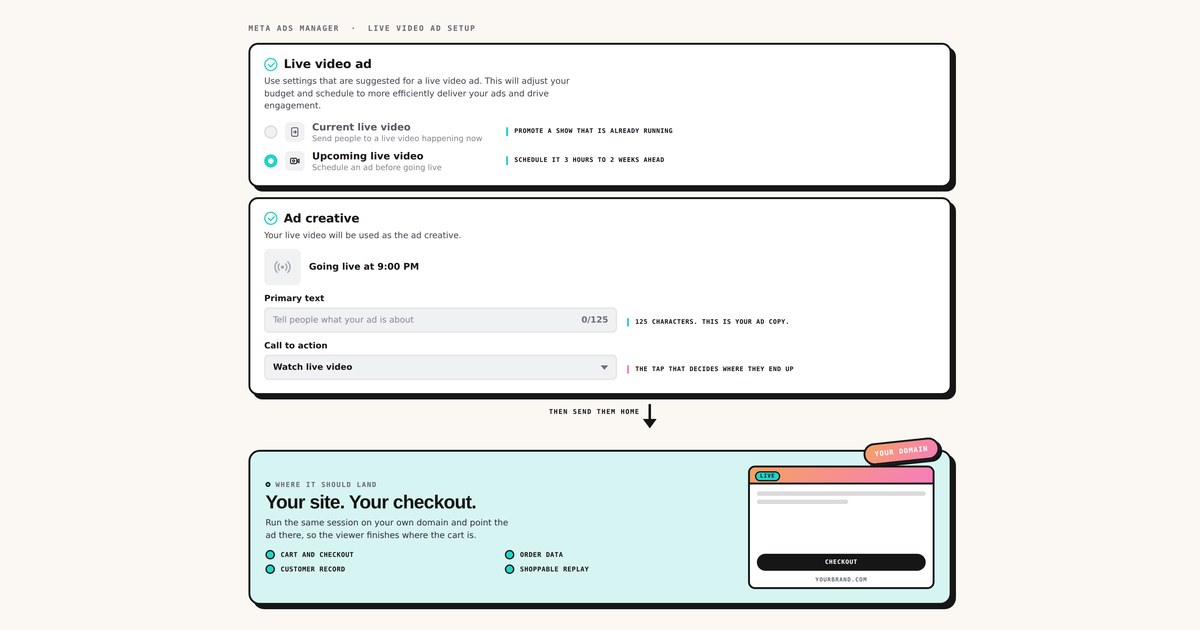
You can schedule a live video ad for an upcoming Facebook Live from Ads Manager. Meta recommends scheduling in advance because it reduces the time to first ad impression. The window is at least 3 hours before the stream starts, and ideally no more than one to two weeks ahead. Supported objectives are Awareness, Engagement, Traffic, Sales and App promotion. Your Page must be eligible, and you need Ads access to the Page.
Setup mirrors the flow above, except you select Upcoming live video and set ad start and end times matching the planned stream. You can run more than one scheduled ad against a single live video, as long as each ad's start time falls inside the stream's duration.
Then there is a second half that is easy to miss, and it is where scheduled live video ads quietly fail.
Meta's documentation is unusually blunt about these.
None of this is complicated. All of it is the kind of thing a team discovers at 8:02pm on the night of a Black Friday show.
Every route above spends your money to fill a room you do not own.
The viewer watches in an app you cannot instrument, buys through a checkout you do not control, and leaves behind a customer record that belongs to the platform. Next quarter you pay to reach that same person again, because you never actually got their details.
That is a reasonable trade for reach you cannot get any other way. It is a bad trade when it is the only thing you do.
If your live session runs on your own domain, it has a URL, and a URL is an ad destination. That single fact opens two routes, and you can run both at once.
Go live with Terrific and the same session broadcasts to Facebook and Instagram at the same time as it runs on your website. Then:
You use the platform for what it is best at, which is putting your show in front of people who have never heard of you. You use your own site for what it is best at, which is converting them and keeping them.
Skip the social leg entirely. Point a standard Meta traffic or sales campaign at the live page on your domain, exactly as you would point it at a product page or a collection. No platform eligibility, no Live Producer sequencing, no 20-minute cliff.
This is the cleaner route when the audience is already warm. Cart abandoners, past purchasers, email subscribers and site retargeting pools do not need to be reintroduced to your brand inside an app. Send them straight to the room.
What both routes give you that a platform-only campaign does not:
1. Fill the room before the doors open. Schedule the ad three hours to two weeks out and pair it with a landing page that captures a reminder. You turn paid reach into an owned list before a single product is shown, which makes the next show cheaper.
2. Top up the room mid-show. A live-only campaign running for the duration of the broadcast, aimed at people already familiar with the brand. Cheap incremental viewers at the moment your host is at their sharpest.
3. Send cart abandoners into a live Q&A. The highest-intent audience you own, dropped into a room where a human answers the exact objection that stopped them. The easiest test to justify to a finance team.
4. Acquire on one hero product. Instead of a broad catalog show, build the session around a single SKU that genuinely benefits from demonstration, and buy cold traffic against it. Live earns its keep on products that need explaining.
5. Buy traffic to the replay. Most live budget dies when the stream ends. Meta explicitly allows promoting a completed live video with no eligibility requirement, and a session hosted on your own site stays shoppable indefinitely. Same creative, weeks of extra life.
6. Put paid behind a creator co-host. Whitelisted creator creative pointing at a session the creator is actually hosting outperforms either half alone, because the promise in the ad gets fulfilled in the room.
CPM and CTR will tell you very little here. What matters is cost per live viewer, average watch time, add to cart per viewer, revenue per viewer, and repeat purchase rate over the following 30 days. Live sessions influence orders that close after the stream, which is why attribution windows and first-party reporting matter more than the in-platform number. We went deeper on that in The CFO's Guide to Live Commerce.
Paid traffic to a live is not one tactic. It is a choice about where the value settles.
Meta will sell you a room. It is a very good room, full of people you could not otherwise reach, and the price is that the room belongs to them. Running the same session on your own domain, and pointing the paid traffic there, costs you one extra tap and buys you the customer.
The useful question is not which converts better in a single session. It is which one you still own in twelve months.
See how Multi-Stream sends social reach back to your own checkout, or book a demo.
Com a confiança das melhores marcas




















Agende uma ligação com um de nossos especialistas para saber mais.